Team and roles
An organization can have many people. Each has their own account (email and password) and their own role.
Roles
- Owner — manages the whole organization: sees and changes everything in every location, manages the team and settings. An organization always has at least one Owner.
- Manager — works in a location: changes restaurants, menus, dishes and inbox decisions. The role is per location; in another location the same person can have View only or no access.
- View only — sees everything in a location but can't change anything.
- No access — the person belongs to the organization but has no location. After signing in, they see a message that no location has been assigned to them yet.
View only suits, for example, a business partner or an accountant; Manager, the floor manager or the head chef.
What each role can do
| Owner | Manager | View only | |
|---|---|---|---|
| Overview, Compare, dish pages, CSV export | ✓ | ✓ | ✓ |
| Restaurants, menu versions, inbox, catalog — viewing | ✓ | ✓ | ✓ |
| Settings: location name and license — viewing | ✓ | ✓ | ✓ |
| Setting up a new location (getting started) | ✓ | — | — |
| Own restaurant, menu, dishes, competitors in a set-up location | ✓ | ✓ | — |
| Changing competitors, menu sources, Check now, menu search | ✓ | ✓ | — |
| Adding, renaming and deleting dishes in the catalog | ✓ | ✓ | — |
| Inbox decisions and Not this dish | ✓ | ✓ | — |
| Baskets — viewing | ✓ | ✓ | ✓ |
| Setting up and changing baskets (shared by the organization) | ✓ | — | — |
| Renaming the location and the organization | ✓ | — | — |
| Team: inviting, changing access, links, removing people | ✓ | — | — |
| Adding locations (within the license) | ✓ | — | — |
When the license has ended, for 14 days everyone — the Owner included — can only look; see License.
Managers and View-only members see only the locations they have a role in. An Owner sees every location of the organization.
The team in Settings
An Owner manages the team in Settings, under Team. Each person's access is shown there: Owner, or roles in individual locations.
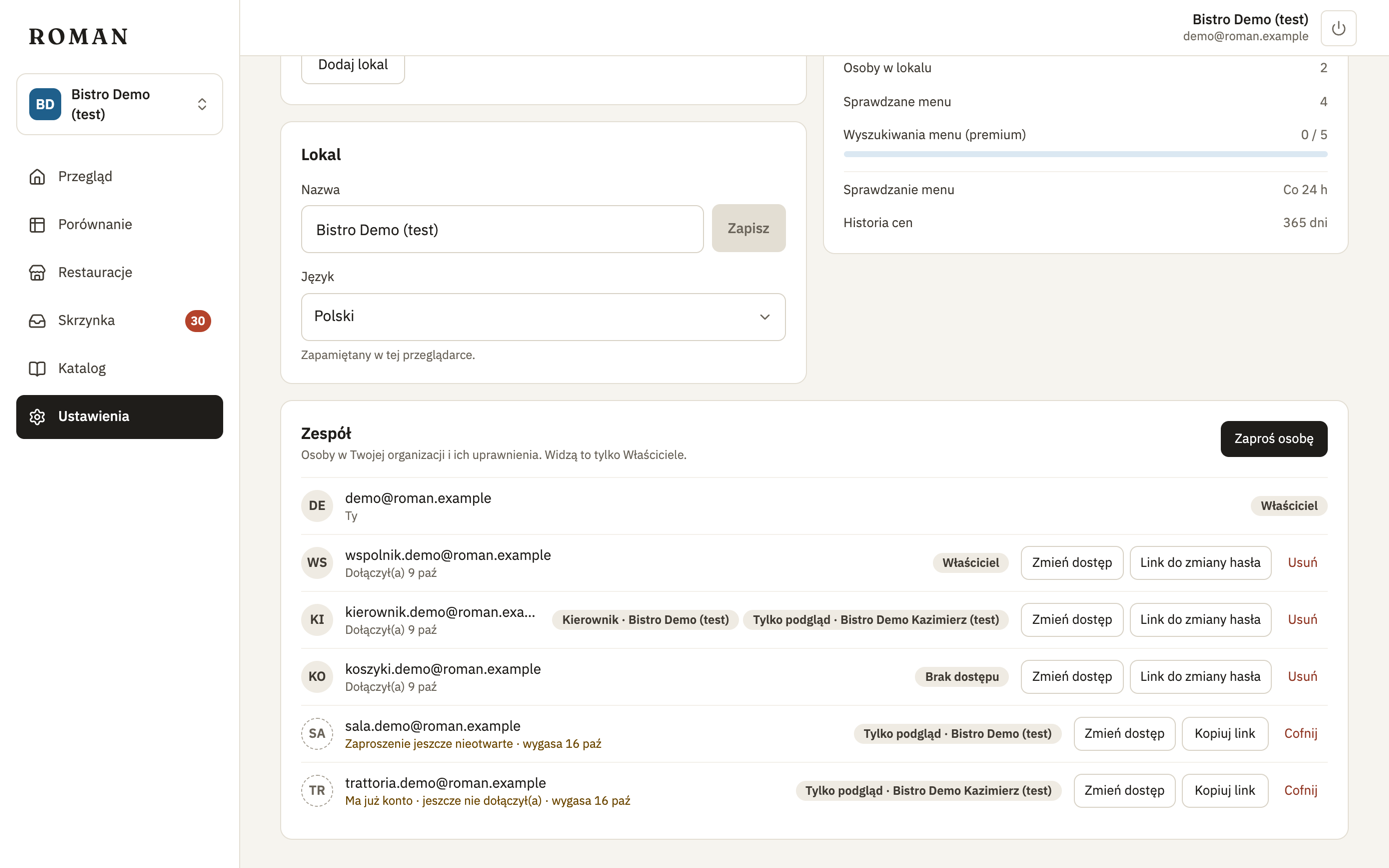
Inviting people
- Click Invite a person and enter their email.
- Under Access, pick Owner or Member. For a member, add locations with + Add access to a location and pick a role for each: View only or Manager. Remove access to a location with the cross. A member without any location belongs to the organization, but after signing in sees that no location is assigned to them.
- Click Create invite link and send the link yourself — e.g. by SMS or WhatsApp. Roman doesn't send emails.
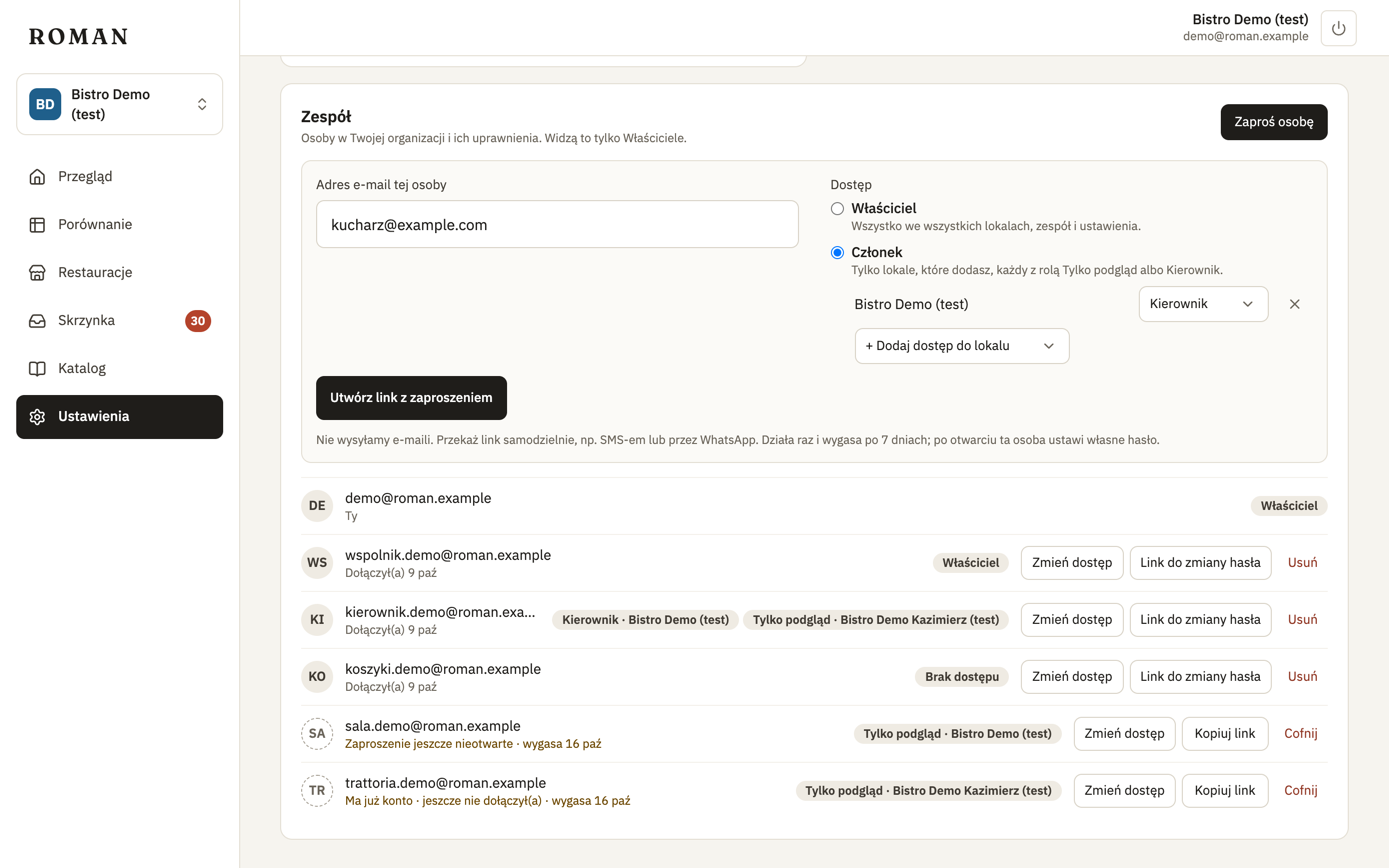
The link works once and expires after 7 days.
- A new person sets their password with the link.
- Someone who already has a Roman account (e.g. in another organization) joins with their existing password — no new account. Details: Joining another organization.
Until someone opens the invite, their address shows when the link expires. You can copy it again (Copy link), create a new one when it has expired, or Revoke the invite.
Changing access
Click Change access next to a person. A panel opens under their name with the same choices as an invite.
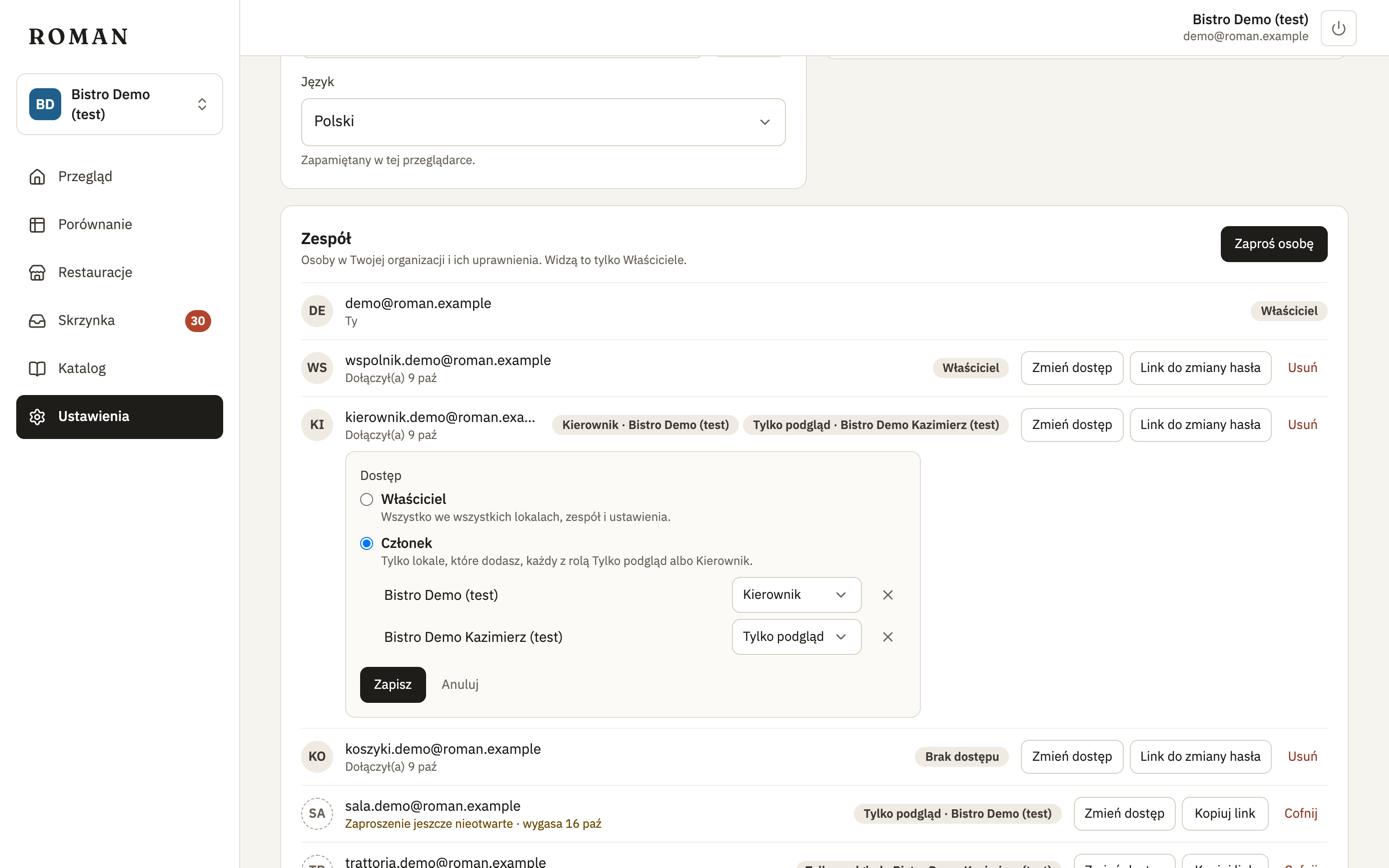
- Owner — the person gets every location, the team and settings. Their roles in locations no longer matter.
- Member — pick a role in each added location (View only or Manager), add another one with + Add access to a location, or remove access with the cross.
Click Save to apply it, or Cancel to leave the access as it was.
Good to know:
- The change applies at once, also for someone who's signed in right now. If you take away the location they have open, they see that no location is assigned to them and can switch to their other locations.
- A member without any location still belongs to the organization — to take away access completely, use Remove.
- Invites that haven't been opened yet can have their access changed too — it applies once the person joins.
- You can't change your own access — ask another Owner.
- An organization always has at least one Owner — the last one keeps the role.
Password reset
If someone forgets their password, create a Password reset link for them. It works once, for 24 hours; when they use it, their other devices are signed out.
Removing people
Remove takes away a person's access to the organization and all its locations. Their sessions in this organization end at once. If they belong to other organizations, nothing changes there.