Organization and locations
An organization is a business, e.g. a restaurant group. A location is one restaurant in Roman: its competitors, dishes and prices. An organization can have several locations, and each location has its own data. Baskets are shared by the whole organization.
One person can belong to several organizations — e.g. their own restaurant and a group where they're a partner — with one account and one password.
Switching locations
If you have access to more than one location, or to several organizations, click the location's name in the top left corner and pick another one. On phones and tablets the switcher is in the top bar.
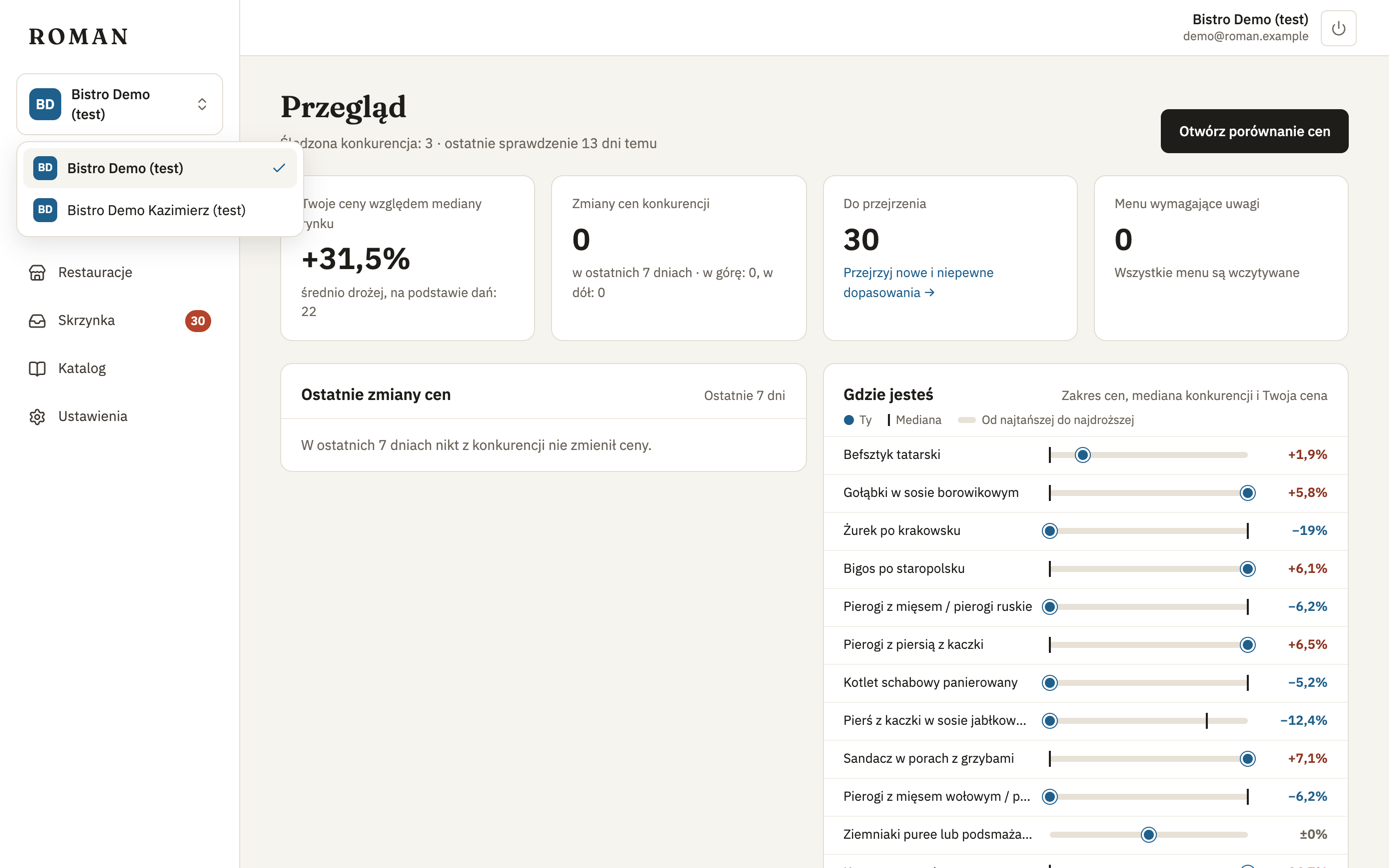
- The list shows only the locations you have access to, grouped by organization.
- After switching, the app opens the Overview of the chosen location.
- Next time you sign in, Roman opens the location you were in last.
Adding a location
An Owner adds a location in Settings, on the Organization card:
- Click Add location and enter the Name of the new location.
- Click Add and set up. Roman opens the new location on getting started: your restaurant, dishes and competitors. The baskets step is already done, since baskets are shared by the organization.
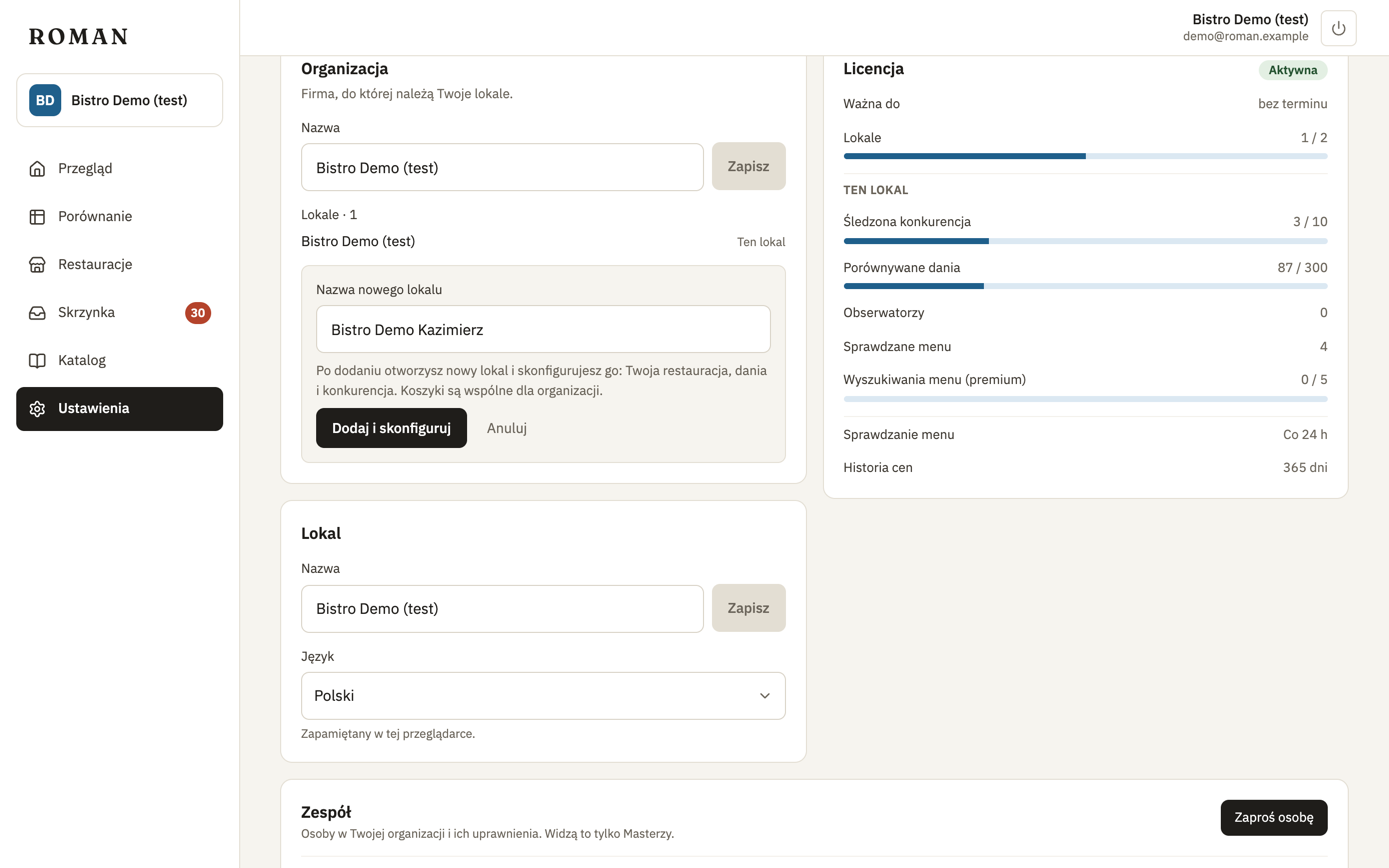
Your license sets how many locations you can have. When all are used, you see a note about the limit instead of the button — to add another location, contact us.
All Owners see the new location at once. You give Managers and View-only members roles in it on the Team; they see it once setup is finished.
Without a location
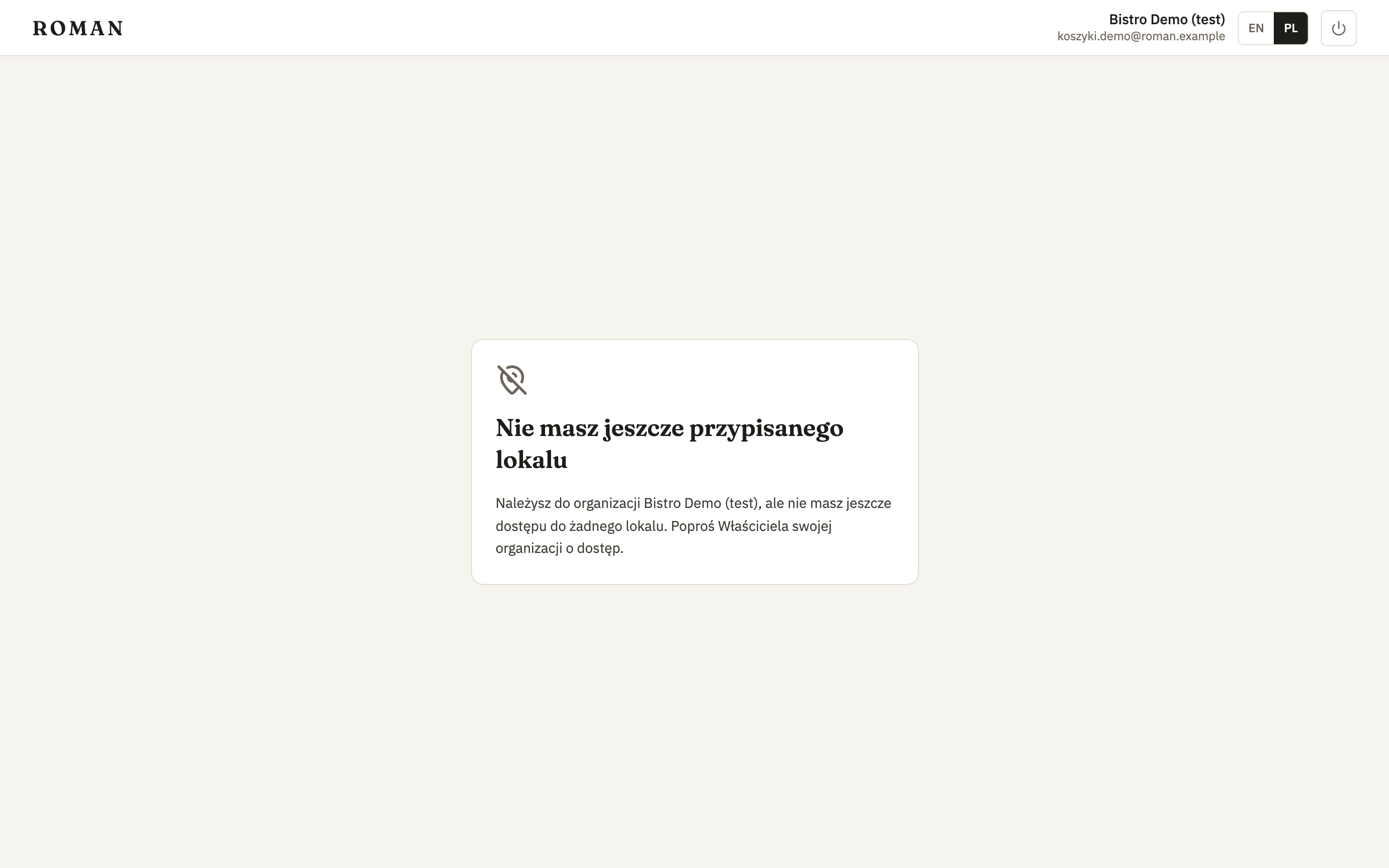
If you belong to an organization but have no role in any of its locations, after signing in you see No location assigned to you yet. Ask an Owner of your organization for access (see Team and roles). If you have locations in other organizations, you can open them from the same screen.
Joining another organization
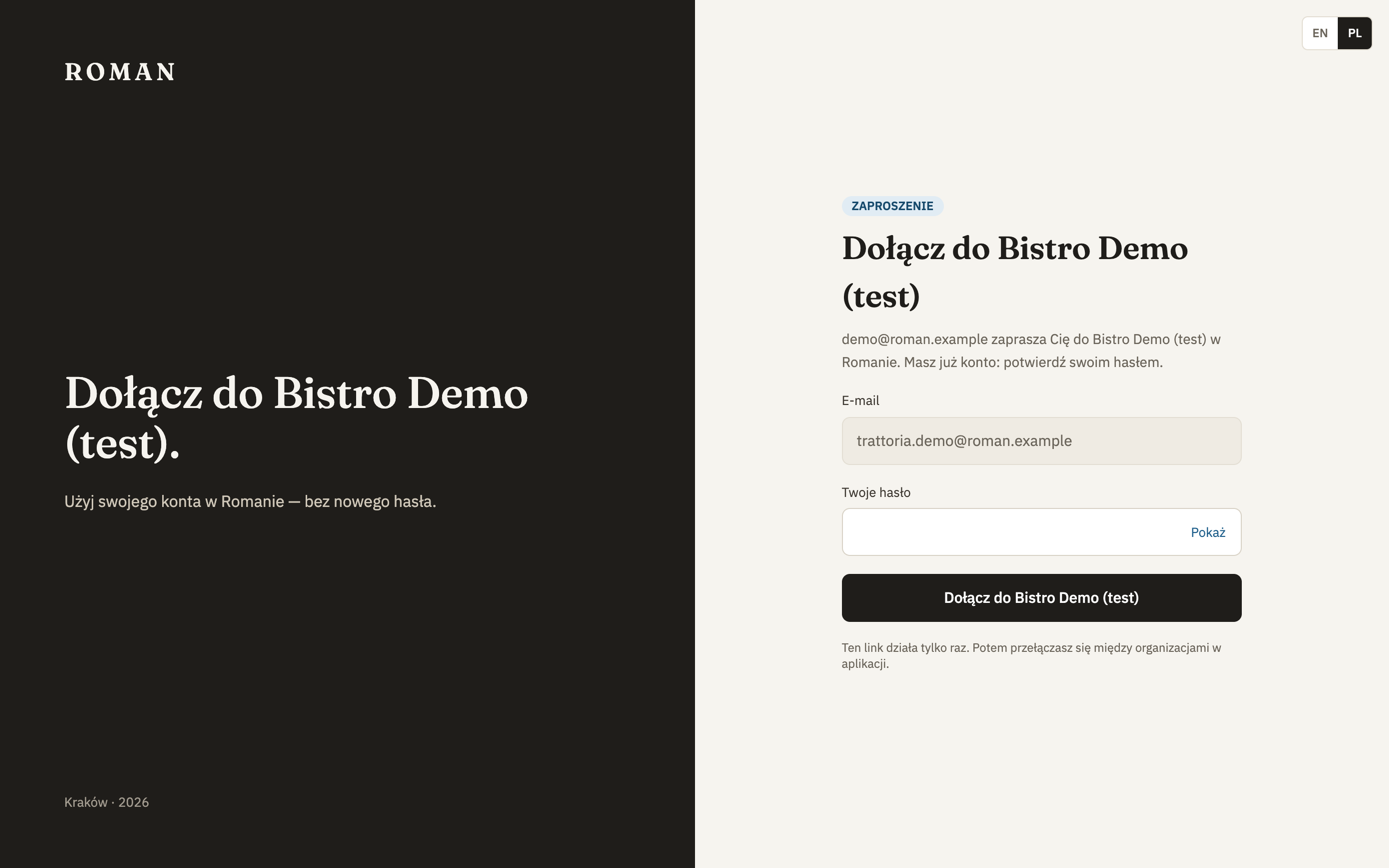
If you already have a Roman account and an Owner of another organization invites you, the invite link opens a Join … screen:
- signed in with that account — just click Join …,
- not signed in — confirm with your existing password,
- signed in with another account — click Sign out and continue.
Once you've joined, the new organization shows up in the switcher next to your others. Until you join, the invite gives no access.